BreezyNotes Supervision Process (Using the “Supervisee Report”)
NEW Feature: BreezyNotes offers an option so that the claims for any provider under supervision cannot be billed without a Supervisor’s signature first. Let BreezyNotes Support know if you’d like this turned on for supervised staff.
Reviewing & Signing Supervisee Notes
Access the Supervisee Report
Go to Reports > Visits > Supervisee.
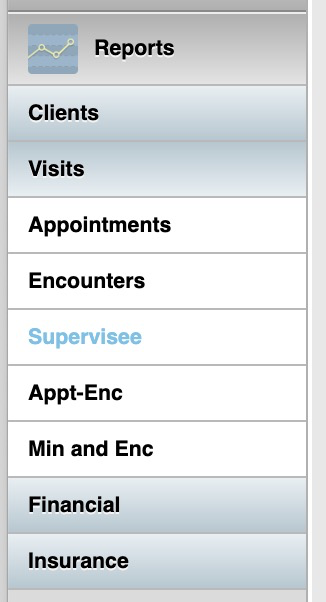
Choose the Provider you are supervising from the “Provider” list*, and the From/To Dates of Service, and whether you want to see just unsigned notes, signed notes or both. Then click the Submit button.
*This will only show the names of Supervisees assigned to you in BreezyNotes.

The following report will be generated:

Date: Date of Service
Patient: Client Name
ID: External ID of the client (if assigned)
Status: Fee Sheet Status.
Closed = Billed
Open = Not Billed
Empty = No Billing Codes
Encounter: Appointment or Encounter Type. Clicking on this will open the encounter in a new window (see below).
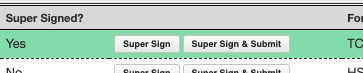
SuperSigned?: Does this encounter have the signature of a Supervisor on it?
SuperSign Button: Click this to add your signature to the note after closing it.
Form: The form or forms included on the encounter
Coding: Billing and Diagnosis codes on the Encounter Fee Sheet
Clicking on a given encounter (“Office Visit,” “Diagnostic Assessment,” etc.) will open that encounter in a new window allowing you to review the notes associated with it.
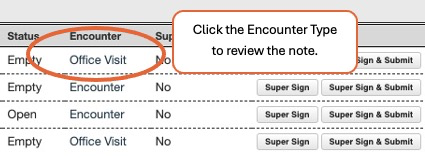
Review the note and close the pop-up window.
If a note has been signed and needs to be edited, click the “Reopen” button.
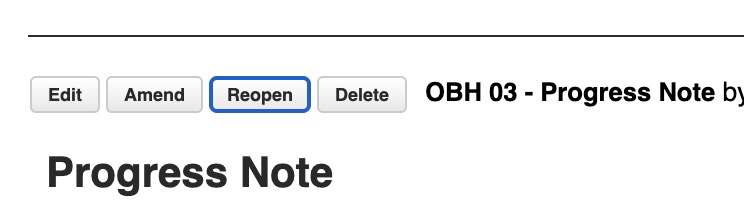
This will allow you to reopen the note so the supervisee can make changes if necessary.
- You will need to give a reason for reopening the note.
- When the Supervisee is done, they will need to sign it again to close it.
Close the window and click the Super Sign button to sign the note, or Super Sign & Submit to add your signature and submit the claim to insurance:

The row will turn green and “Super Signed” will change from No to Yes to indicate the Supervisor’s signature has been added to the report: