
Reopen Any Note for Editing
13.02.2026
Notes & Forms, Support Posts
Clinical Admins and Supervisors have the ability to reopen notes so they can be modified after a provider or supervisee has already signed and locked the note.
- Open the Encounter Summary for the note that needs to be edited. For those with access, you’ll see a Reopen button

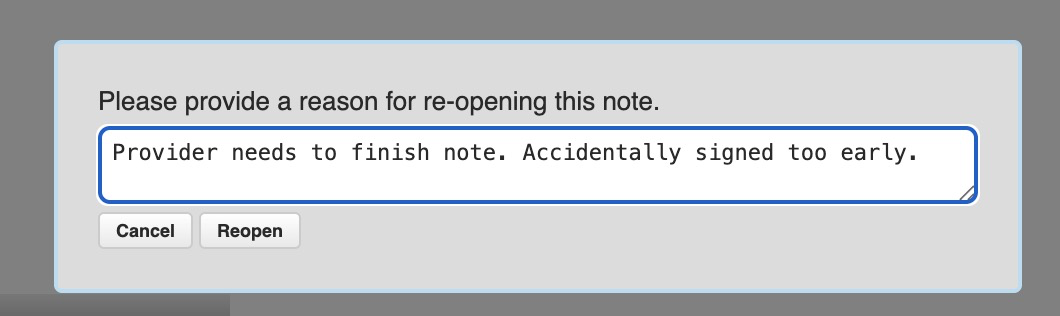
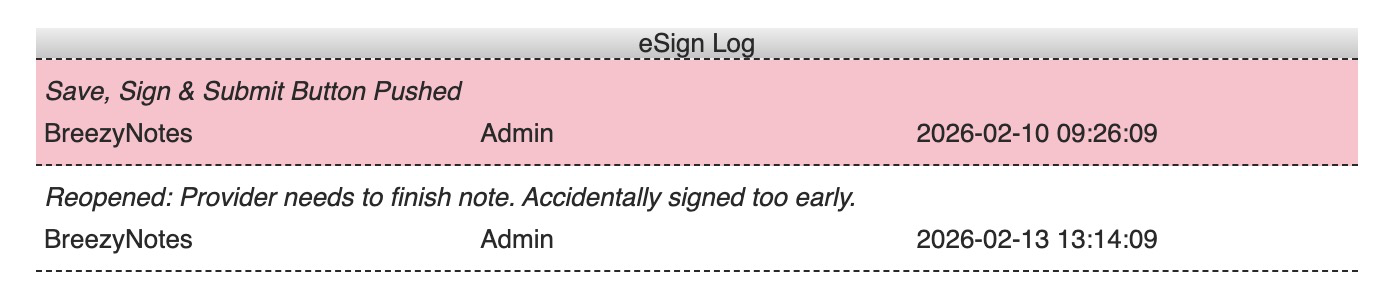
- Click the button and you will be required to enter a reason for reopening the note. This will be added to the eSign log.
- From that point, the note is open and available for updating.
- The user can click the Edit button for that note to open it
- Make any changes as appropriate.
- Click:
- Save to save the note
- Save & Close so you can return and finish it later (This will not complete the note OR update the Fee Sheet)
- Save & Sign to close and re-lock the note it again.*
- Save, Sign & Submit to close and relock the note, and queue the claim for clearinghouse submission.
*NOTE 1: If you make a change to the Billing Code in the note, clicking Save & Sign or Save, Sign & Submit will update billing code(s) on the Fee Sheet. Keep this in mind if the claim was already billed.
Missing Billing Codes in a Reopened Form?
When a claim is billed, it locks the Fee Sheet. In order to modify a billing code on a re-opened form, you’ll need to first reopen the Fee Sheet.
In the Encounter Summary:
- Click the Fee Sheet button to open the Fee Sheet
- Click “Reopen”
- Click “Finish
From there, click the Edit button on the form you wish to update. Make your changes. Click Save & Sign.